Searching and Filtering Records
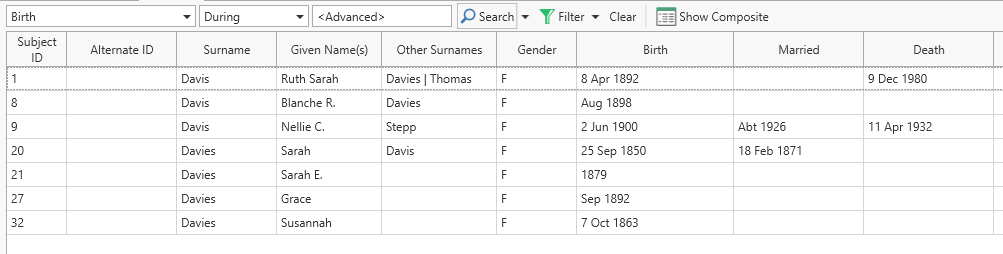
The main function of the toolbar is to support searching and filtering of records in the data type being displayed. This applies to both the grid and Composite View A screen layout in Clooz similar to a grid, but containing a hierarchical structure of expandable groups of rows displayed in a parent-child type arrangement. display formats. Defining the parameters for a search or filter are basically identical, although the resulting display is different.

Simple Matching (single set of criteria)
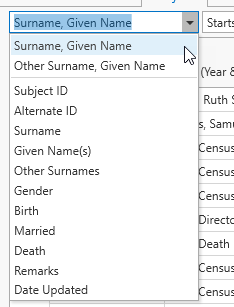
The Column(s) field is where you select the display column (or in some cases, columns) to be searched or filtered. A drop down list of all the available columns in the current display is available to select from. Only columns currently set to display (as opposed to those that are hidden) will appear in the list.
There is a special case with people Subjects Subjects are the objects you are gathering information about. In most cases with Clooz, this is people. However, Clooz supports several other types of subjects such as businesses, real estate/buildings, ships and artifacts., shown above the separator line in the list. When you select one of these items with multiple columns (as in Surname, Given Name), the text entered as criteria must be in that format. If you do not enter a comma, the search will revert back to a single column search using the first of the multiple columns (in this case, Surname). Thus, you can leave the column designation as the multiple case, but only enter the comma and Given Name when you really want to. When you do enter values for multiple columns, the condition is applied to each column separately. Thus if you select Surname, Given Name with the condition Starts With, and enter “Shop, C” as the criteria, you will find the first row with a person whose surname begins with “Shop” and a given name that begins with “C”.

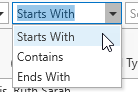
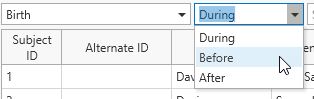
The condition field is next, and determines how the search or filter criteria will be applied. This too has a drop down list of choices, which depend upon the data type of the column(s) selected.
| Text | Numeric | Date |
|

|
|
Finally, you must enter in the criteria to be applied. Clicking Enter at this point will apply execute the search or filtering, whichever has the light box around the button. Set the default toolbar action to match your preference in the program Options. Otherwise, you can just click on the desired button, or use a keyboard shortcut (Crtl+S to search, Ctrl+F to Filter).
Do not enter wildcard characters (*, ?) into the criteria unless they are part of the text you are trying to match. The Condition field provides these wildcard functions automatically.
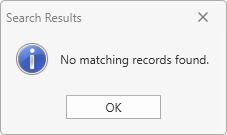 Clooz will then display the results. If there are no matches to the criteria you entered, a message will pop up stating this.
If this was a search, the matching rows will be highlighted, and Clooz will move to the first matching row.
 If a filter operation, Clooz will only display records that match the criteria. In addition, a filter icon will appear in the status bar to indicate filtering is currently in effect and only a subset of the data is being displayed.
 Click the Clear button to clear a currently active search or filter.
When search results are displayed that have multiple record matches, you can advance to the next matching row by clicking the Search button again. Shift-click the Search button to go back to the previous matching item.
When searching for names in the Other Surnames column, it is best to use Contains as the condition, since the field could contain multiple names. Using Starts With in that case would only evaluate the first or possibly several names for that person.
Advanced Matching (multiple sets of criteria)
In the preceding section, the process for performing single criteria (simple) searches and filtering was covered. What if you want to combine several sets of criteria to use in the search. Clooz provides an Advanced Search and Advanced Filter capability for this purpose.
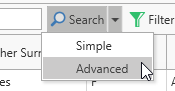 Click the down arrow to the right of the Search or Filter button. A menu will appear to chose from. Simple is the process we previously described. Select Advanced.
 A dialog window will display for you to define the match criteria.
The advanced search window lets you formulate any combination of fields to be tested, and you can designate whether all of the columns you select (using the checkbox) must be met, or at least one of them. A Find or Filter button will appear to execute the search, depending on which toolbar button you selected for the advanced action.
The "Include blanks" column is how you can indicate whether records that have blank values for the field should be considered a match or not.
Resulting display: